Enhancements
-
Added support for Alberta, British Columbia and Manitoba staying on daylight time after November 2026, so dates and times in those provinces no longer shift an hour. A valid time zone saved on a user’s profile is also no longer overwritten at login when the browser reports a different one.
#system
#ui
#1893829
Alberta, British Columbia and Manitoba stop changing to standard time in November 2026. Execute now follows the new rules, so dates and times for users in those provinces stay on daylight time and don’t fall back an hour on November 1.
Action recommended: check the time zone saved on each user’s profile in Alberta, and set it toAmerica/Edmontonif it is anything else. Users in British Columbia and Manitoba should useAmerica/VancouverandAmerica/Winnipeg.Updating users’ time zones: Search or filter the user list to show only the affected users, then use the “Bulk Update” menu item on the “Timezone” column to set the new value.
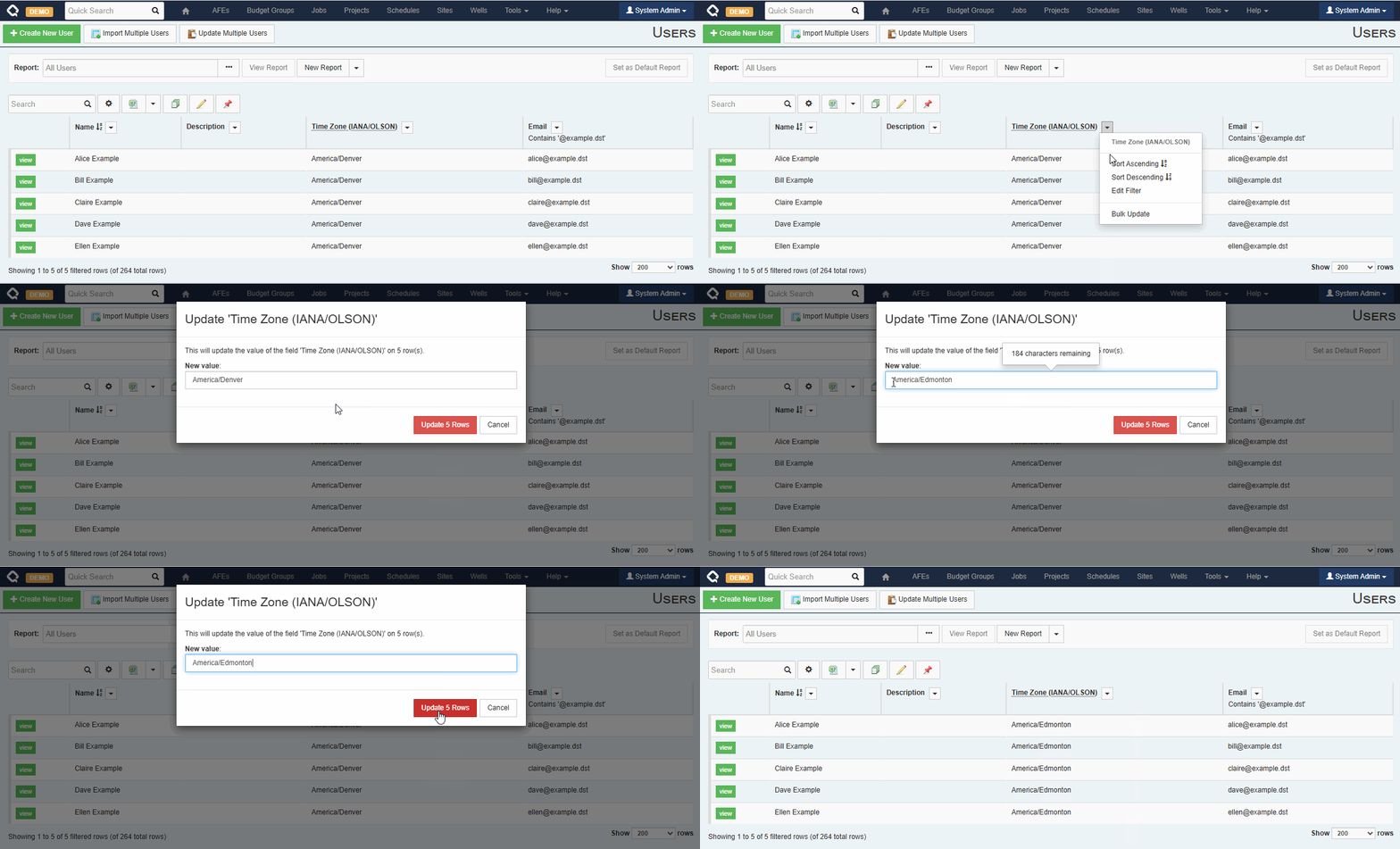
Why check profiles: Users’ time zones are derived from their web browser settings, but browsers in Alberta may sometimes report
America/Denveras their time zone, depending on Windows settings and browser versions. This used to be fine because the rules were the same in both places. Now, users in Alberta with anAmerica/Denversetting will see incorrect local times.Windows servers: the new Alberta, British Columbia and Manitoba time zones come with the October 2026 Windows update. Execute v332 works the same on servers without it, so you don’t need to install the update for this change.
Bugs
- Fixed an issue where the Review Status and Approval Status tabs on an AFE formatted dates using the web browser’s time zone instead of the user’s selected time zone. #afe #ui #1898542