Schema Changes
-
New Incoming Ballot document (
INCOMING_BALLOT) that holds each ballot received from an operator, including its estimate, partners, extra data and response options, the response you sent (SENT_VOTE_RESULT,SENT_VOTE_DATE,SENT_VOTE_COMMENT) and the response recorded on the Electronic Balloting server (RECORDED_VOTE_RESULT,RECORDED_VOTE_DATE,RECORDED_VOTE_COMMENT). #balloting #admin 21.1.333 #1831410
Features️
-
Introducing non-operated ballots for Electronic Balloting. Non-operated ballots let you receive ballots through Electronic Balloting, turn each one into a Non-Operated AFE, and send your response back, all without leaving Execute.
#balloting
#afe
#ui
21.1.333
Introducing non-operated ballots for Electronic Balloting. Non-operated ballots let you receive ballots through Electronic Balloting, turn each one into a Non-Operated AFE, and send your response back, all without leaving Execute.
Setting it up: Non-operated ballots are part of the Electronic Balloting feature and require a module license. Configure the EB_KEY_ID and EB_KEY_VALUE credentials with the settings provided by Execute support.
Privileges: Users need the Create AFE from Electronic Ballot and Manage Electronic Ballot Data Mapping privileges to see incoming ballots, add the ballot widgets to their dashboard, create or update AFEs from ballots, and open a ballot from its AFE.
Finding ballots that need attention: Three dashboard widgets list the ballots that need you: Electronic Ballots Ready for AFE Creation or Update for ballots you can turn into an AFE or use to update one, Electronic Ballots Awaiting Response for ballots still waiting for your response, and Electronic Ballots with Final Status for ballots where the operator has sent a final status update.
Hiding a ballot: If you won’t create an AFE from a ballot, use the Hide action. A hidden ballot leaves the widgets until you choose Un-Hide or the operator sends an update.
Creating or updating an AFE: Open a ballot and select Create or Update AFE. The mapping UI shows the ballot’s main fields, partners and estimates next to the AFE field or value each maps to. A new ballot will create a new Non-Operated AFE, and the mapping can be changed and run again to update the AFE if it is still in Unreleased status. To view the ballot details and its attachments from the created AFE, select More > View Electronic Ballot and Attachments.
Revisions and supplements: Each revision or supplement arrives as its own ballot. Before you can map the data from a revision or supplemental ballot, you must revise or supplement the original AFE. If the version doesn’t match, a message explains what to do.
Responding to the operator: Once your AFE has been internally approved or rejected, use Send Status to Execute Balloting on the AFE to choose a response from the options on the operator’s ballot, add a comment, and attach a file if you need to.
Enhancements
-
The sample ODA integration plugin now uses the current
oda.account_v2table in its base query. #integration #plugins 21.1.333 #1895410 -
System.IO.Compression.Brotli.dllis updated to version 8.0.33 to address CVE-2026-111497 #system 21.1.333 #1904399 -
Added support for Alberta, British Columbia and Manitoba staying on daylight time after November 2026, so dates and times in those provinces no longer shift an hour. A valid time zone saved on a user’s profile is also no longer overwritten at login when the browser reports a different one.
#system
#ui
21.1.332
#1893829
Alberta, British Columbia and Manitoba stop changing to standard time in November 2026. Execute now follows the new rules, so dates and times for users in those provinces stay on daylight time and don’t fall back an hour on November 1.
Action recommended: check the time zone saved on each user’s profile in Alberta, and set it toAmerica/Edmontonif it is anything else. Users in British Columbia and Manitoba should useAmerica/VancouverandAmerica/Winnipeg.Updating users’ time zones: Search or filter the user list to show only the affected users, then use the “Bulk Update” menu item on the “Timezone” column to set the new value.
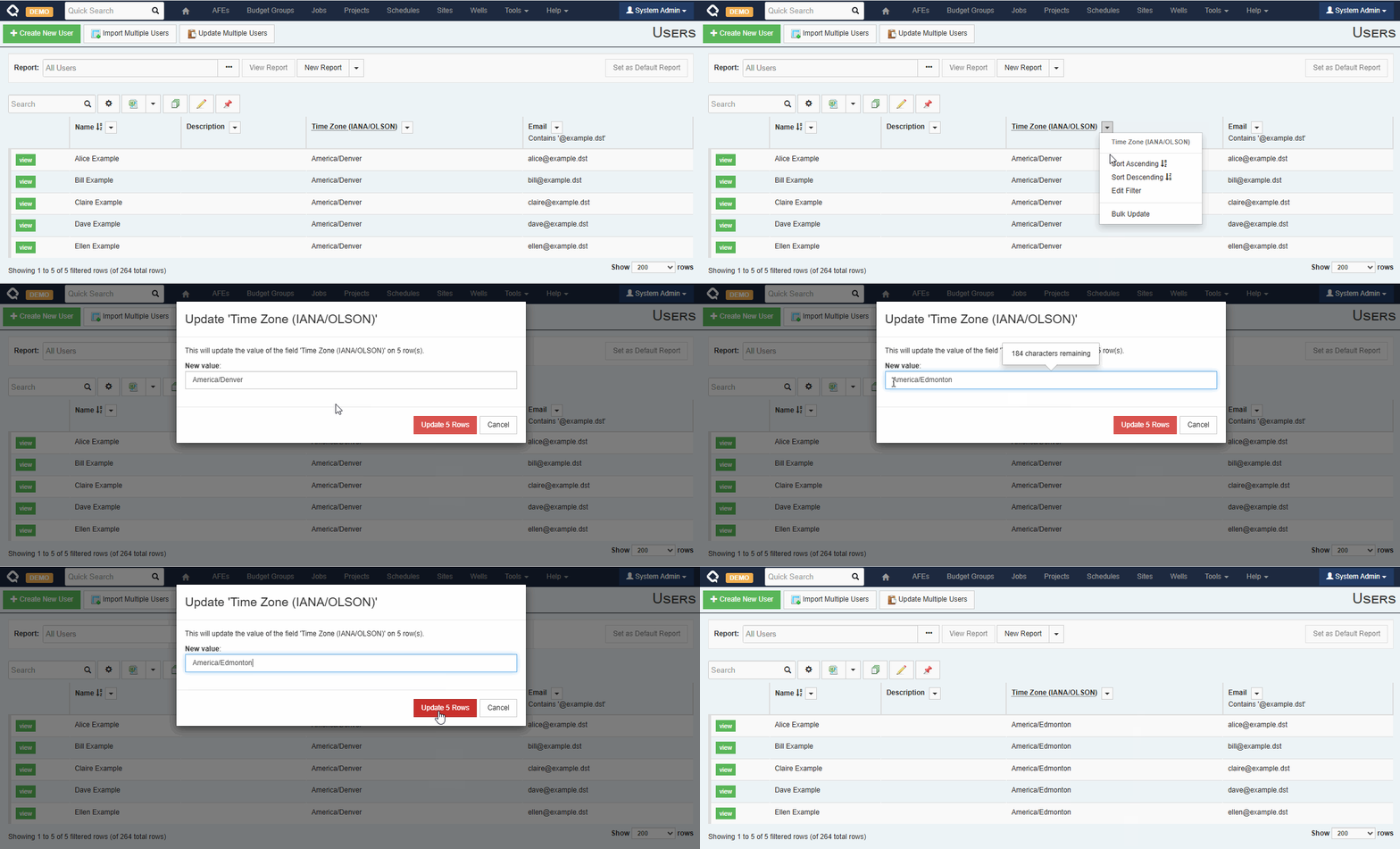
Why check profiles: Users’ time zones are derived from their web browser settings, but browsers in Alberta may sometimes report
America/Denveras their time zone, depending on Windows settings and browser versions. This used to be fine because the rules were the same in both places. Now, users in Alberta with anAmerica/Denversetting will see incorrect local times.Windows servers: the new Alberta, British Columbia and Manitoba time zones come with the October 2026 Windows update. Execute v332 works the same on servers without it, so you don’t need to install the update for this change.
Bugs
-
Fixed an issue where a calculated field that reads a table through an empty document reference, such as
TableCounton a Job with no Well, caused errors. #formula #system 21.1.333 #1899086 - Fixed an issue where the Review Status and Approval Status tabs on an AFE formatted dates using the web browser’s time zone instead of the user’s selected time zone. #afe #ui 21.1.332 #1898542