Features️
-
An administrator can mark documents as Global Templates to provide a starting point to create a new AFE, Job, Well, Site or other document.
#ui
#admin
#361485
To create, edit, or remove Global Templates, you must have the Manage Global Templates privilege. Users with this privilege will see an “All Global Templates” report in the report list on the browse page of eligible documents.
To mark a document as a Global Template, view the document and select “More > Mark as Global Template”. A Global Template Description is required and can guide creators as to the information within that template. Documents that are marked as a Global Template can only be edited by users with the Manage Global Templates privilege. Once a document is marked as a Global Template, creators will see a list of the templates under the “Create New” button.
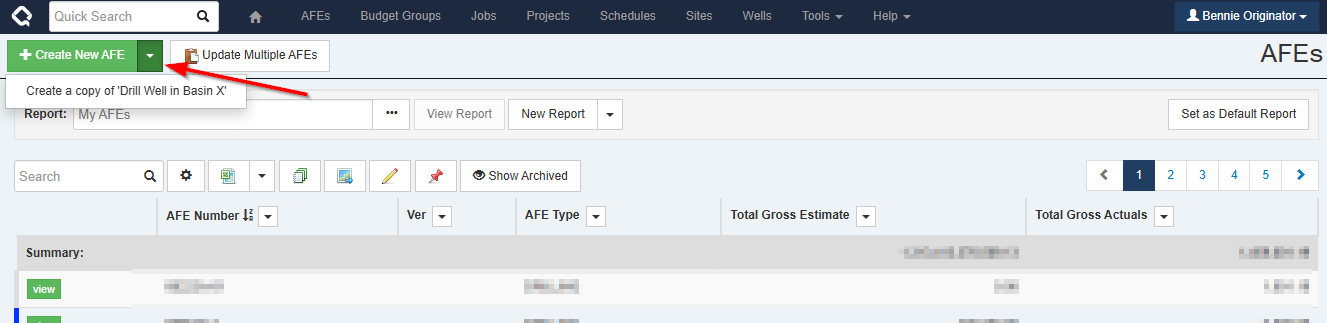
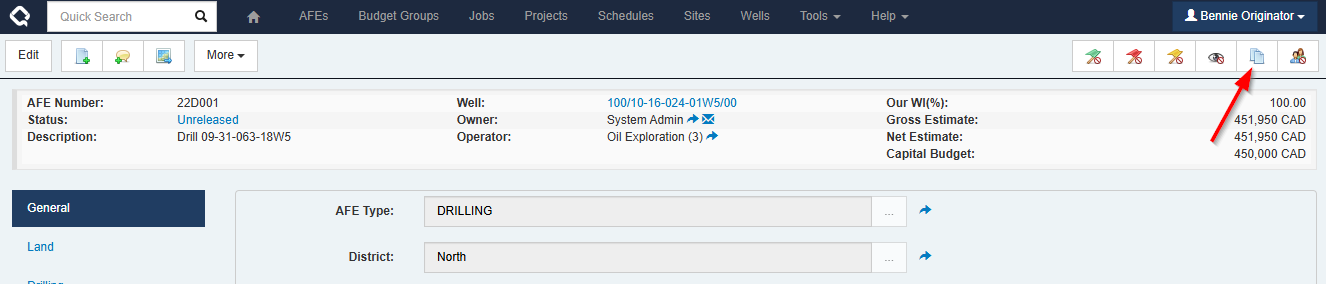
If a creator has used the template button on an AFE or a Job to create their own templates, these user templates will also be listed under the “Create New” button, along with any Global Templates.
There are two columns that can been added to a browse report in order to find documents that have been marked as a Global Template:
- Is Global Template
- Global Template Description
A creator will only see Global Templates listed that they have permissions to see, according to their view rights.
Note: If your organization uses advanced workflows and plans to use the Global Templates feature, you may want to adjust the workflow activation rules to exclude documents marked as a Global Template.
Enhancements
- The print dialog for non-AFE documents has been enhanced with search and select all capabilities. As well, you can select to generate a separate PDF file per form. The selections you make on the dialog are remembered for the next time you print a document. The downloaded PDF file will be named with the document’s display identifier and the form name. #ui #362777
- The enhanced print dialog for non-AFE documents now allows you to select PDF attachments for inclusion in the PDF output or click on links to download non-PDF attachments. #attachments #ui #363063
-
You can now suppress the Teams and Approvals tabs for a Job document. This will be useful for companies using advanced workflows instead of disciplines to gather information for a Job.
#ui
#well delivery
#361127
The Team and Approvals tabs can be turned off by adding the following to the
<castle>container inuser.config.To turn off the Teams tab:
<?define SUPPRESS_RTX_TEAM_TAB ?>To turn off the Approvals tab:
<?define SUPPRESS_RTX_APPROVALS_TAB ?> - Improved the select all functionality within table data selectors. There are now options to select all or select all on page. Footers in the selection modal show the number of selected rows from the total number available. #ui #plugins #360453
- The UI character limits for comment fields are now consistent with the limits in the database. #ui #359871
- Testing is complete for Databricks data selector and synchronization plugins. This functionality has been promoted from a beta version. #integration #plugins #357137
- Final removal of legacy Angular library files. #system #ui #security #350027
- Upgraded the DataTables javascript library to version 1.13. #ui #security #system #357403
Bugs
- Fixed an issue where Mermaid diagrams on the Tasks tab of the workflow definition would fail to render when the text size exceeded the allowed limit. #ui #workflow #361653
- Performance of the Jobs tab for Wells and Sites has been improved, and a loading progress indicator has been added. #well delivery #performance #ui #361640
- Performance of the My Active Tasks widget on the dashboard has been optimized and a loading progress indicator has been added. #dashboard #performance #ui #362304
- Improved the efficiency of some database queries that are run during service startup. #performance #system #359874
- Fixed an issue where tables in an email reminder were not rendering correctly. #email #361495